Features of FlixPal

Keep Channel 5 Shows Sharp in 1080p Full HD

FlixPal gives you a practical choice between 1080p and 720p when downloading Channel 5 programmes. Pick Full HD when picture detail matters more, or choose 720p when you would rather keep file sizes lighter. AAC 2.0 audio is retained as well, making the downloaded episodes ready for everyday offline viewing.

Watch Channel 5 Offline with No Ad Breaks

FlixPal removes ads from downloaded Channel 5 programmes, so a catch-up session does not keep stopping for commercial breaks. Whether you are watching one episode on the train or settling in for several in a row, your saved videos play straight through for a cleaner, less distracting offline experience.

Follow Every Scene with Channel 5 Subtitles

FlixPal keeps the subtitles available with supported Channel 5 programmes, so downloaded episodes are easier to follow when voices are quiet, accents are unfamiliar, or you are watching somewhere noisy. They are also useful when you want to keep the volume low and still catch every line without relying on the stream.

Queue More Channel 5 Episodes with Batch Downloads

Add several Channel 5 episodes or programmes to the queue at once instead of starting each download separately. FlixPal is especially useful when you are catching up on a series, saving several shows before a trip, or preparing a longer offline watchlist in one session.

More Features of FlixPal

Turn Channel 5 Programmes into MP4 or MKV Files

FlixPal saves Channel 5 downloads as standard MP4 or MKV files with H.264 encoding, making them easier to store, move, and play outside the streaming platform. Keep episodes on your laptop, copy them to an external drive, or open them with the media player you already use.

Turn Channel 5 Programmes into MP4 or MKV Files

FlixPal saves Channel 5 downloads as standard MP4 or MKV files with H.264 encoding, making them easier to store, move, and play outside the streaming platform. Keep episodes on your laptop, copy them to an external drive, or open them with the media player you already use.

Spend Less Time Waiting with GPU-Accelerated Downloads

FlixPal uses GPU acceleration to speed up Channel 5 video processing, which is especially helpful when you are downloading longer programmes or several episodes back to back. Build an offline watchlist faster and get more of your saved shows ready before you leave home or settle in for a binge.

Let New Channel 5 Episodes Download on Schedule

Follow an ongoing Channel 5 series in FlixPal and set scheduled downloads for new episodes. Once configured, FlixPal can check for updates and add newly available episodes automatically, so your catch-up list keeps moving without you returning to search for every release by hand.

Match Each Download to Your Preferred Language

Make every download feel ready to watch from the start. FlixPal saves the audio and subtitle tracks you choose when they are available, so your Channel 5 programmes open offline with the language setup you actually want—no need to sort through the options again later.

How to Download Channel 5 Videos with FlixPal?

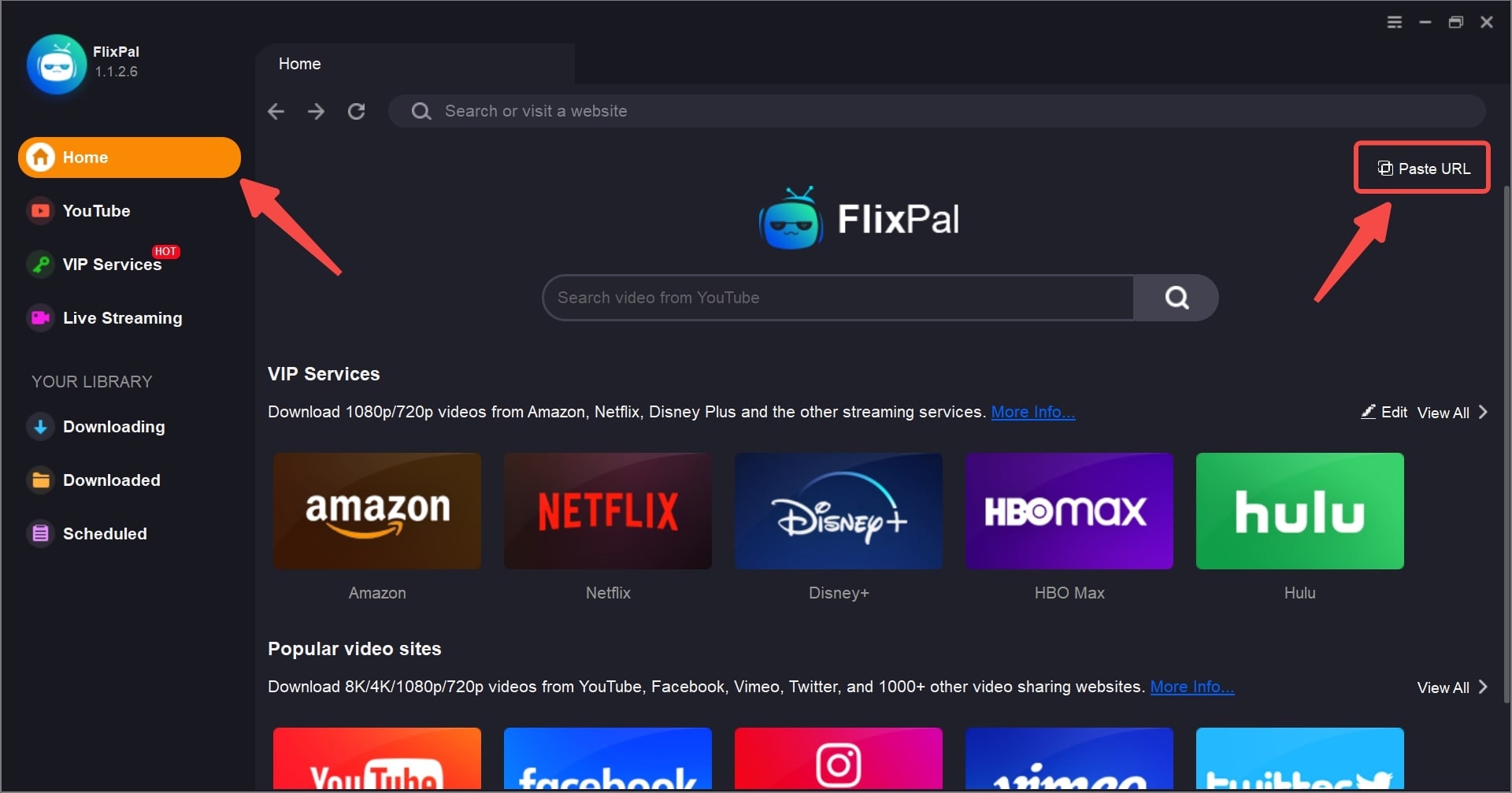
<b>Step 1: </b>Launch FlixPal and open Channel 5 in the built-in browser.
Step 1

Step 1: Launch FlixPal and open Channel 5 in the built-in browser.

Step 2

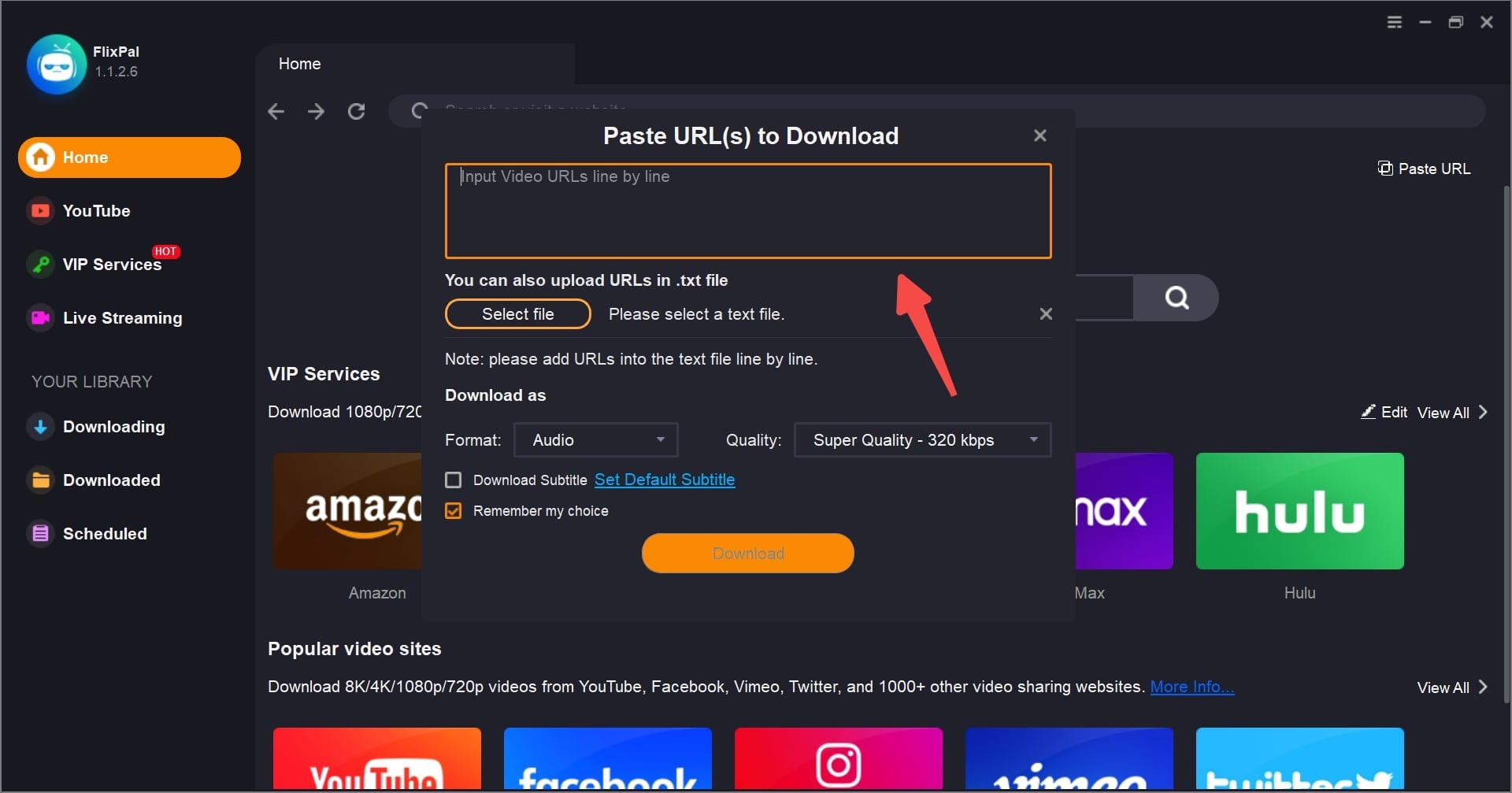
Step 2: Sign in to Channel 5, then find and play the programme you want to download.

Step 3

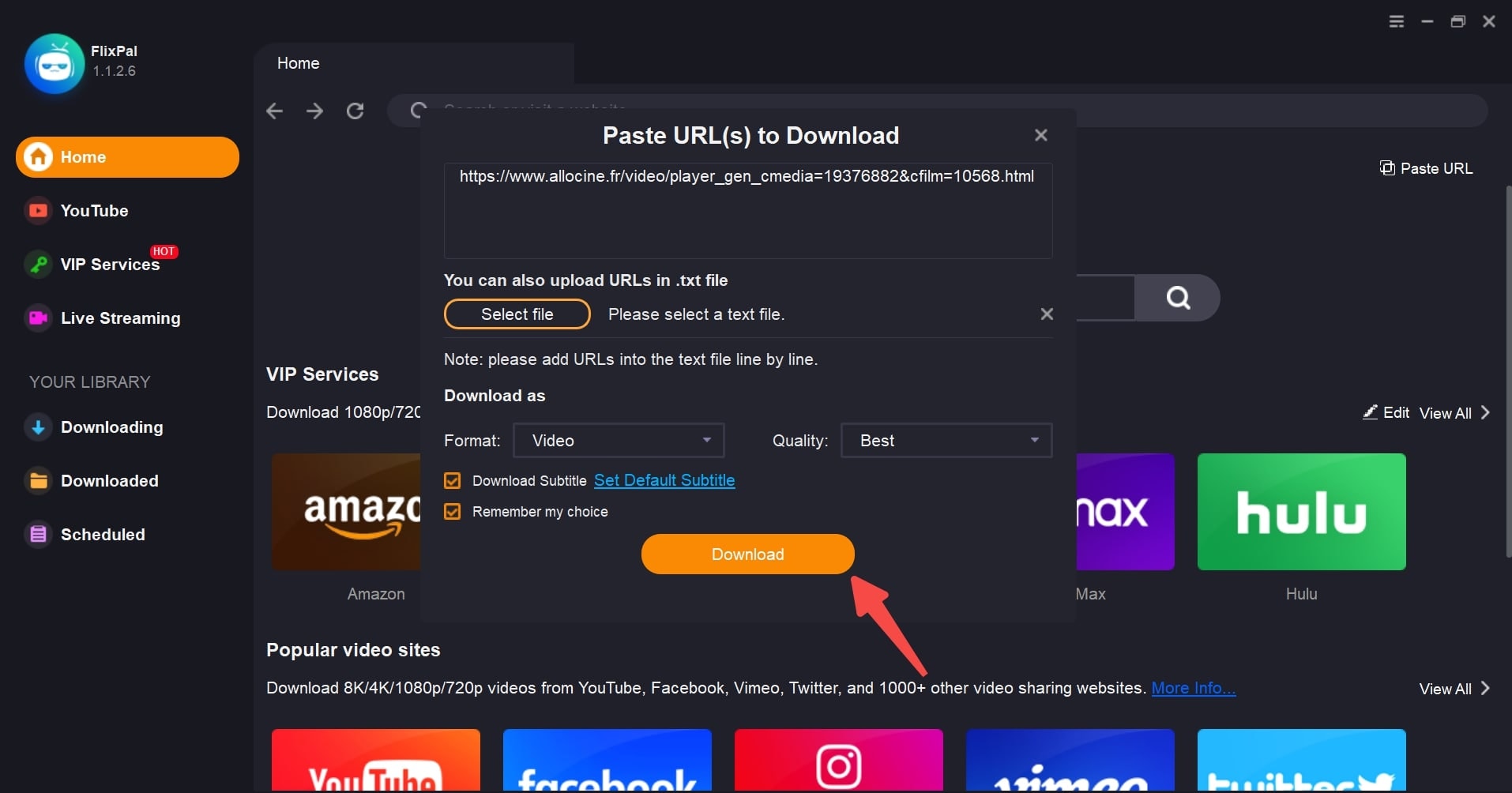
Step 3: Choose the video quality, audio, and subtitle options you need, then click Download Now.

Step 1
Step 2
Step 3
Step 1: Launch FlixPal and open Channel 5 in the built-in browser.
<b>Step 1: </b>Launch FlixPal and open Channel 5 in the built-in browser.
Step 2: Sign in to Channel 5, then find and play the programme you want to download.
<b>Step 2: </b>Sign in to Channel 5, then find and play the programme you want to download.
Step 3: Choose the video quality, audio, and subtitle options you need, then click Download Now.
<b>Step 3: </b>Choose the video quality, audio, and subtitle options you need, then click <b>Download Now</b>.